Projects
A project is the central unit of work in KNX Clarity. Everything else — rooms, devices, group addresses, ETS files, service cases, comments, activity, attachments — hangs off a project. Every project belongs to exactly one organisation and, optionally, one customer.
The projects list
Click Projects in the sidebar to see every project in your organisation. The list is sorted by most recently updated.
- Desktop
- Mobile

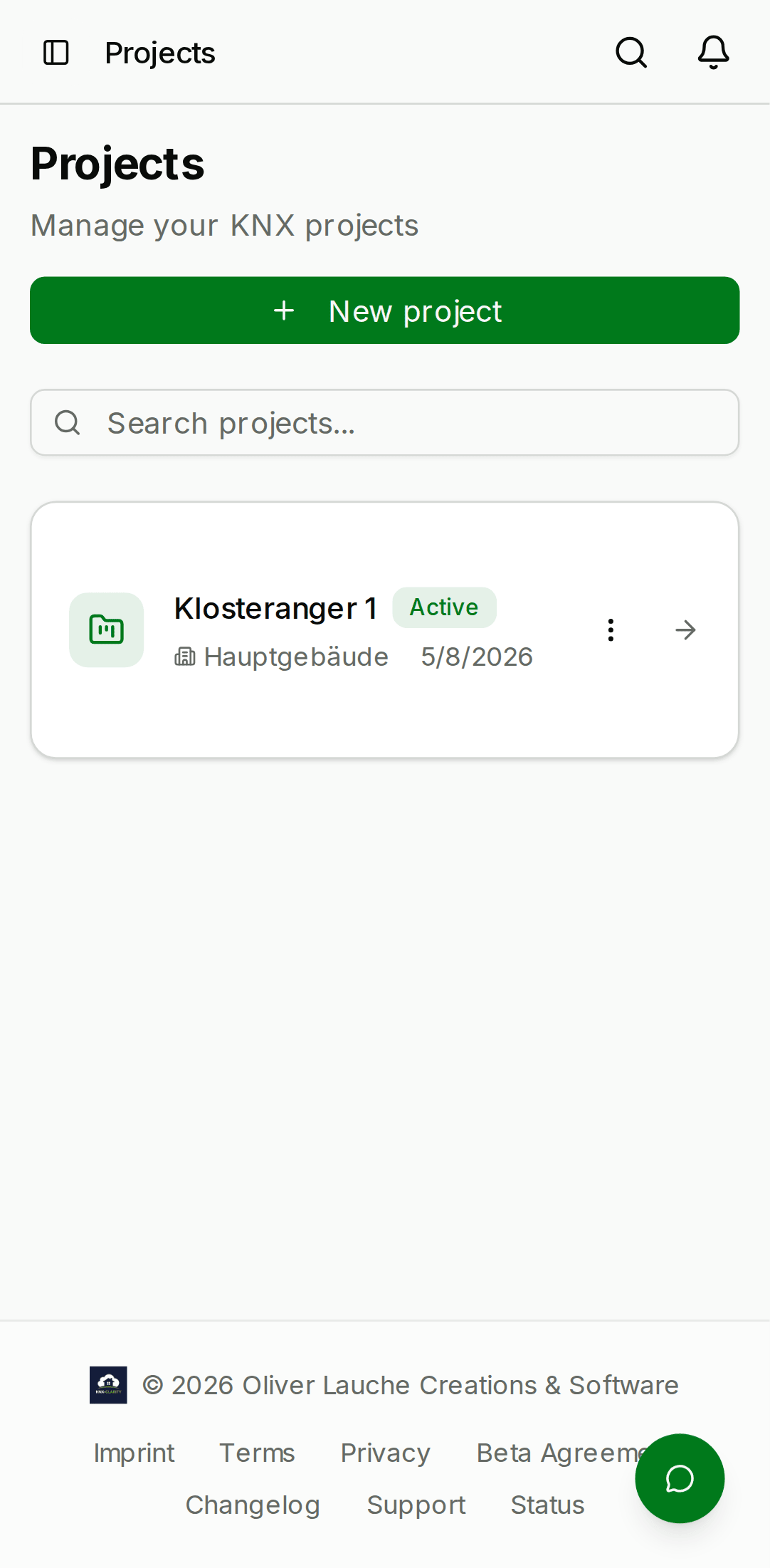
You can filter by:
- Status —
active,completed,archived,escrow. - Customer — a dropdown of every customer in the org.
- Free text — matches project name, building name, and description.
Click any project card to open its detail page.
Creating a project
Click New project in the top-right. The minimum required field
is the name; the rest can be filled later. A newly-created project
starts with status active and an empty buildingAddress.
| Field | Notes |
|---|---|
| Name | Required. Shown everywhere the project is referenced. |
| Customer | Optional. Pick from the org's customer list. |
| Building name | Optional. Used as a secondary title in the detail. |
| Building address | Optional, free text. |
| Description | Optional, free text. |
The project detail
A project-intelligence summary card sits above a strip of tabs.
There is no separate "Overview" tab — the summary and the header
(name, status, key figures) are always in view. The tabs you see
depend on your permissions in that project; for an admin member of
the owning org the full set, in order, is:
- To-Do — outstanding tasks for the project.
- Pläne (Plans) — floor plans, sketches, and ETS project files. See ETS files.
- Räume (Rooms) — the parsed room tree. See Rooms & devices.
- Geräte (Devices) — the sortable device table, with a BOM CSV export. See Rooms & devices.
- Funktionen (Functions) — logical functions that group devices and group addresses.
- Gruppenadressen (Group addresses) — the parsed KNX group-address table. See Group addresses.
- Passwörter (Passwords) — an encrypted vault for the installation's credentials.
- Wartung (Maintenance) — maintenance schedules that open a ticket automatically when a service interval falls due.
- Aktivität (Activity) — a filtered feed of the project's history.
- Kommentare (Comments) — free-form project discussion.
- Live Bus (Beta) — live KNX telemetry through an optional, read-only bridge agent.
- KI-Assistent (AI assistant) (Beta) — a chat scoped to this project. See AI assistant.
- KI-Konfiguration (AI configuration) (Beta) — AI-assisted configuration suggestions.
- Kundenfreigabe (Customer visibility) — control exactly what the building owner sees in their portal.
Tickets are managed org-wide under Tickets in the sidebar, not on a project tab — see Tickets.
- Desktop
- Mobile

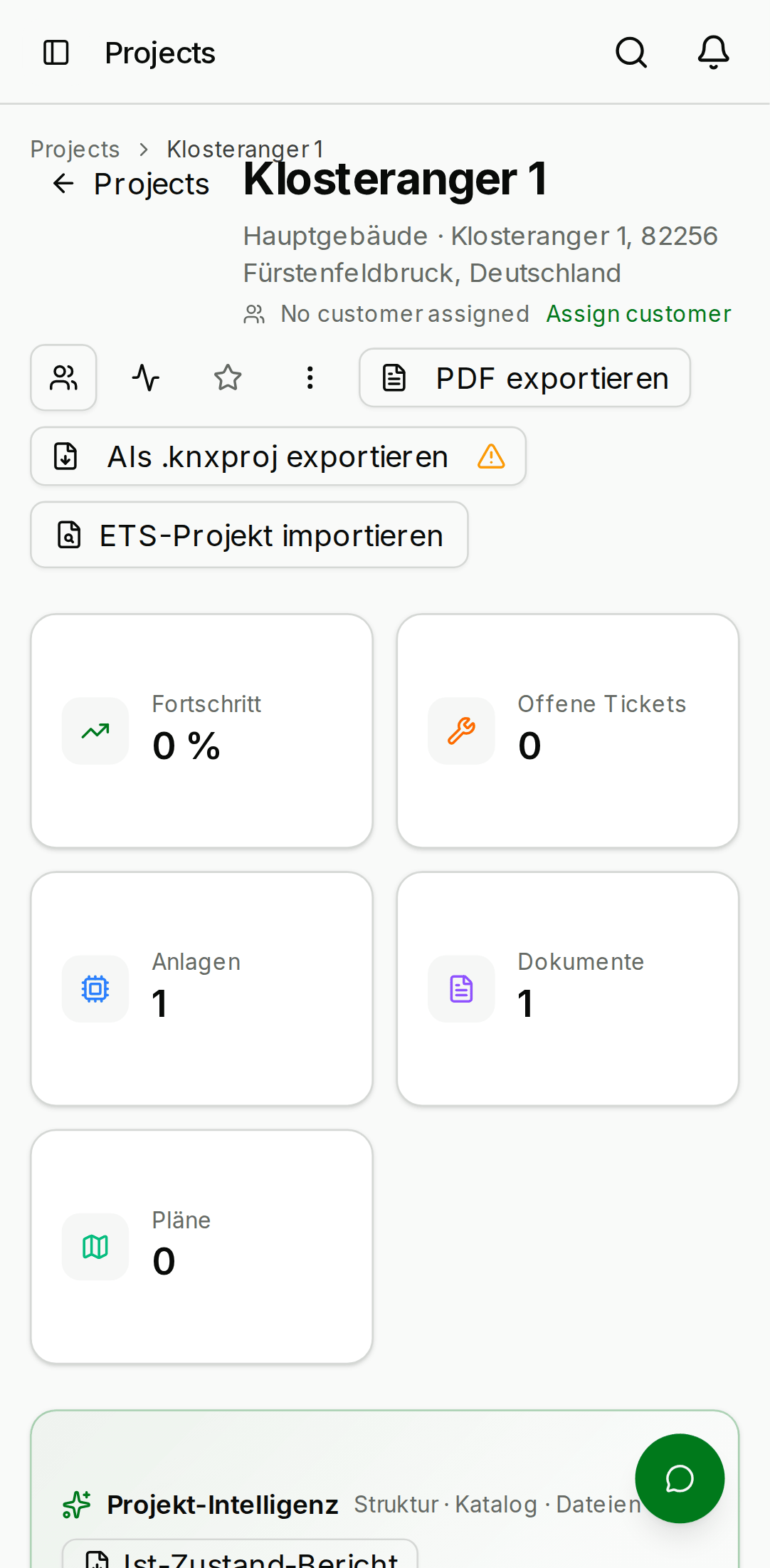
Changing status
Use the status dropdown in the top-right of the detail page to move between the four lifecycle states:
active— the default state, all features enabled.completed— the project is done but still visible; most writes are still allowed so you can tie off lingering service cases.archived— the project is hidden from the default list filter and becomes read-only. You can un-archive at any time.escrow— the project is parked pending a transfer to another organisation. See Escrow & transfers.
Adding a description inline
The description, shown in the summary above the tabs, supports inline
edit for anyone with admin or technician role. Click the pencil icon,
type, and click Save. Markdown is not rendered in the
description — it is a plain text field.
Deleting a project
Click ⋮ → Delete project in the top-right of the detail page. The confirmation dialog asks you to type the project name exactly to avoid accidents. Deletion is hard for beta — the project row, all its children, and all its attachments are removed. Export anything you want to keep before confirming.
There is no undo for project deletion in the current beta. If you delete a project by mistake, contact us within 24 hours via the in-app feedback button or at info@knx-clarity.com — encrypted backups are kept for that window.