Settings, audit log & notifications
The Settings page is the home for everything that isn't a project, a customer, or a ticket — profile, organisation configuration, billing, API keys, notification preferences, and the audit log. Your personal security (password, MFA) and privacy (data export, account deletion) live on the separate Account page, reachable from the user menu.
Profile
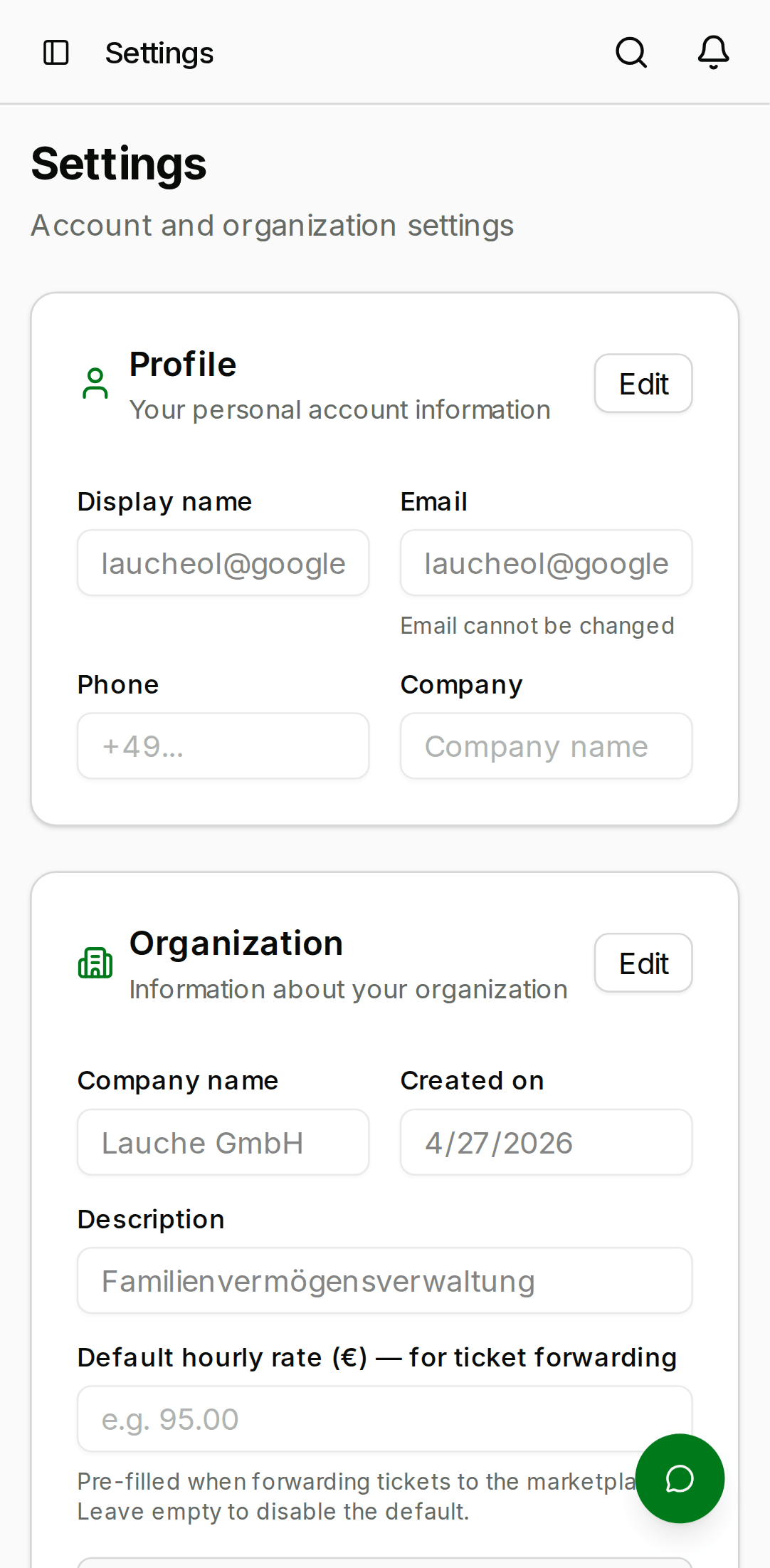
The first tab on the Settings page shows your own profile. You can edit:
- Display name — shown in comments, the sidebar avatar, and the team list.
- Email — used for invitations, notifications, and account recovery. Changing your email triggers a verification message to the new address; the change is not committed until the link in the email is clicked.
- Company — free text, shown next to your name in team lists.
- Phone — optional, shown in the team drawer only.
Your role (integrator, field staff, or building owner) is not
on this tab; it lives under Account → Role. Integrators and
field staff can switch between those two roles themselves, for
example when another organisation invites you to help with its
projects. A building-owner account cannot be turned into an
integrator or field-staff account, or vice versa — if you signed
up with the wrong role, contact support. Your role is independent
of your memberRole in a specific org.
- Desktop
- Mobile

Account: security & privacy
Personal security and privacy moved out of Settings onto the separate Account page (open it from the user menu). There you can:
- Change your password — requires the old password and a new one that meets the public beta policy (≥12 chars, upper, lower, numeric, symbol).
- Enable MFA — scan a TOTP QR code with an authenticator app (1Password, Authy, Aegis). The beta supports TOTP only; SMS is deliberately excluded.
- Sign out everywhere — invalidates every active session on every device. Use this if you suspect a credential leak.
- Export your data and delete your account — the GDPR Article 15 / 17 controls (see Privacy below).
We'll make MFA mandatory for admin member roles after the public
beta; enabling it now saves you the scramble later.
Billing, API keys & integrator profile
admin members also manage the org's commercial surfaces from
Settings:
- Billing (
#billing) — your current plan and usage, upgrade to a paid tier via Stripe Checkout, and open the Stripe customer portal to manage payment or cancel. See Billing for how tiers and quotas work. - API keys — create and revoke bearer tokens for the REST API (Pro and above). The plaintext token is shown once at creation.
- Integrator profile — the public profile other orgs see on the marketplace, including your reputation.
Organisation
The Organisation tab is visible only to admin members.
From here you can edit:
- Organisation name
- Description
- Default language (used in outbound emails like invitations)
- Logo (optional, 512×512 PNG)
You can also leave the organisation (for non-owner admins) or
transfer ownership to another admin.
Notifications
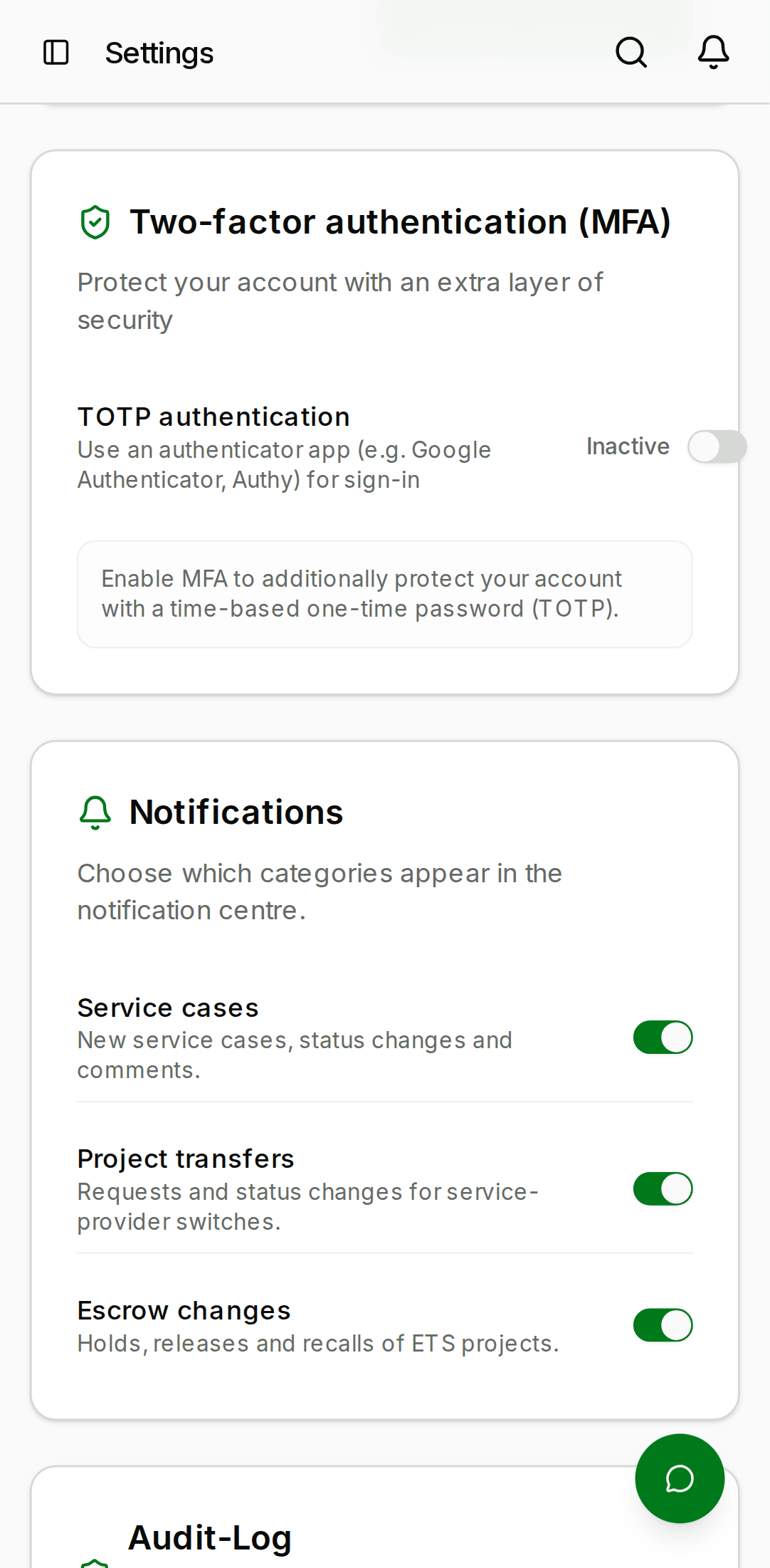
The Notifications tab controls what events fire a notification for your user. It is a matrix of event × channel:
| Event | In-app | |
|---|---|---|
| You're assigned a service case | ✅ | ✅ |
| A case you watch changes status | ✅ | ⬜ |
| Someone @mentions you in a comment | ✅ | ✅ |
| You're invited to a new organisation | ✅ | ✅ |
| An ETS upload you triggered finishes | ✅ | ⬜ |
| A transfer involving your org changes | ✅ | ✅ |
Every row can be toggled independently. Unchecking a row takes effect immediately for new events; existing notifications are not rewritten.
In-app notifications appear on the Notifications page (sidebar, bell icon). Unread notifications are bolded and counted in the sidebar badge; click a notification to mark it read and jump to the referenced object.
- Desktop
- Mobile

Audit log
The Audit log is a card within Settings (#audit) — there is no
longer a separate sidebar entry for it. It is a tamper-evident
append-only log of every administrative action taken in your
organisation, visible to admin members only.
Entries are generated for:
- Member add, remove, role change
- Project create, status change, delete
- Customer invite, revoke
- Transfer initiate, accept, decline
- API key create and delete
- Settings changes that affect the org
- Desktop
- Mobile

You can filter by:
- Date range
- Actor (member)
- Action type
- Target entity
Export filtered results to CSV via the Export button in the top-right. Audit entries are retained for 365 days in the public beta; older entries are pruned on a nightly cron.
Data plane actions — creating a service case, uploading an ETS
file, editing a device — are not in the audit log today.
Those fall into the projectActivities feed on the dashboard
and the project's Activity tab. The audit log is control-plane
only: who has access, who is in the team, and what moves between
orgs.
Privacy
Data export and account deletion live on the Account page (under Privacy), not Settings. There you can:
- Request a data export — downloads every row associated with your user (profile, memberships, authored comments, AI chat history) as a zip of JSON files. Available within minutes for small accounts; larger accounts are queued and the download link is emailed.
- Delete your account — permanently removes your sign-in account and your personal data. Projects and org data you created remain with the organisation (otherwise deleting one admin would orphan the whole org). You will be signed out immediately.
Both are required for GDPR Articles 15 and 17 and are available to every user, not just admins.
Support and feedback
Under Settings → Support the footer shows:
- A link to this documentation site
- A link to the changelog (once released)
- A link to the in-app feedback form (also reachable from the "BETA" banner at the top of the screen)
- A contact for responsible disclosure of security findings — email info@knx-clarity.com