Customers
A customer in KNX Clarity is the person or company who owns the building a project is installed in. Customers belong to an organisation, can be linked to zero or more projects, and can optionally be invited into KNX Clarity themselves with a limited owner role.
Customers and your own colleagues share one sidebar surface, Kunden & Team (Customers & Team). This page covers the customer half; see team roles for the member side.
- Desktop
- Mobile

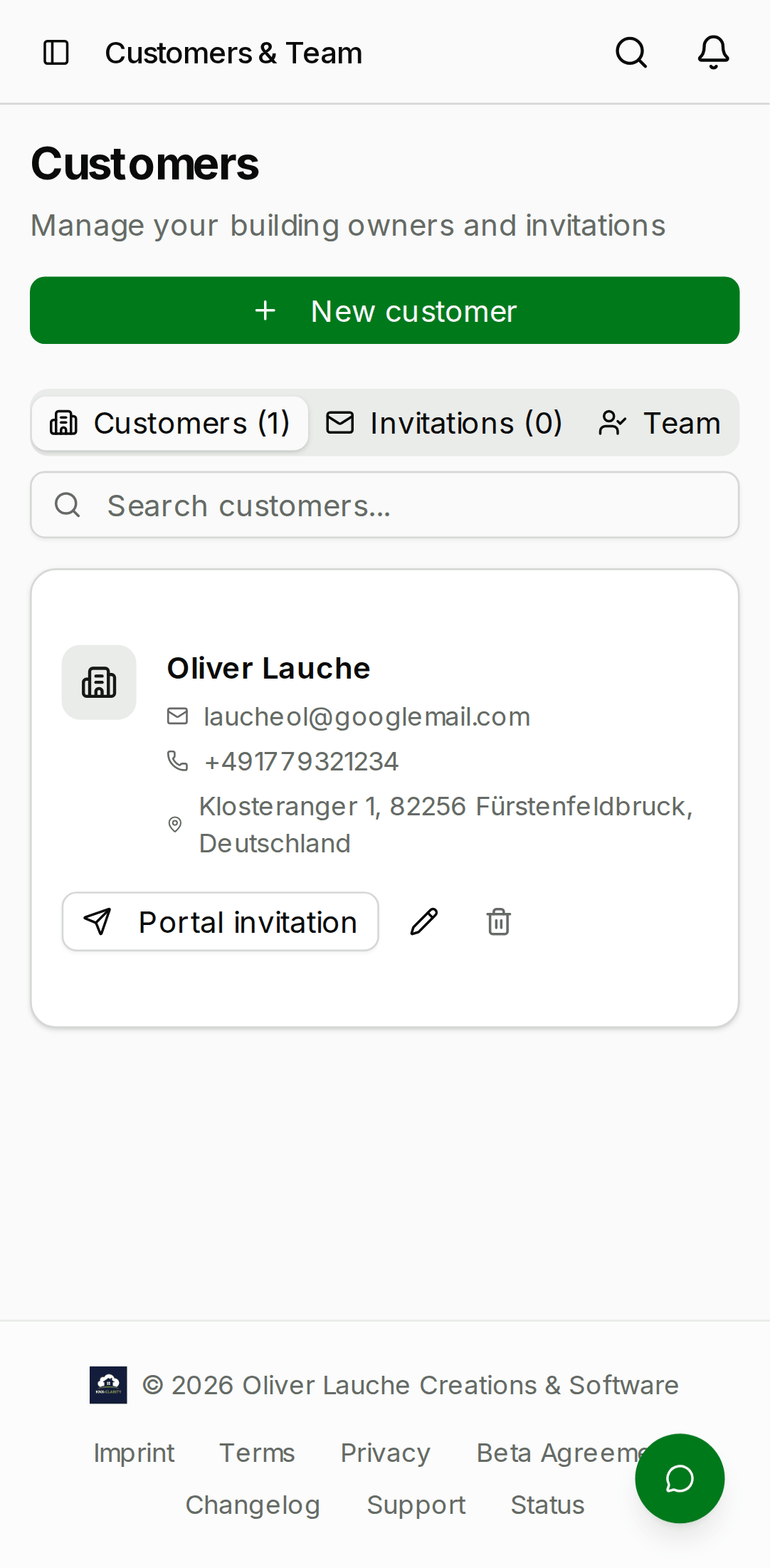
Creating a customer
Open Kunden & Team in the sidebar, then Add customer in the top-right. The form accepts:
| Field | Required | Notes |
|---|---|---|
| Name | Yes | Typically "Firstname Lastname" or company name. |
| No | Required if you want to invite the customer. | |
| Phone | No | Free text, formatting not enforced. |
| Company | No | Useful when the customer is a corporate entity. |
| Address | No | Multi-line free text. |
A customer record with no email is perfectly valid — it's just a contact card. Add an email later if and when you decide to give them portal access.
Linking a project to a customer
From a project's detail page, click the Customer card on the Overview tab and pick a customer from the dropdown. Projects can have at most one customer. A customer can have many projects.
From the customers list, click the Projects count in the customer row to see every project linked to that customer.
Inviting a customer to the portal
Customers who have been given an email address can be invited into KNX Clarity with a limited owner role. They can:
- See every project linked to their customer record.
- Read (but not edit) the rooms, devices, and group addresses.
- Open and comment on service cases.
- Download ETS exports.
They cannot edit devices, upload new ETS files, invite anyone else, or see anything outside their linked projects.
To invite:
- Click Invite on the customer row in the customers list.
- Confirm the email.
- KNX Clarity sends a signup link with a token that expires in 7 days.
- When the customer signs up, they are automatically enrolled in
your organisation with the
ownermember role.
- Desktop
- Mobile

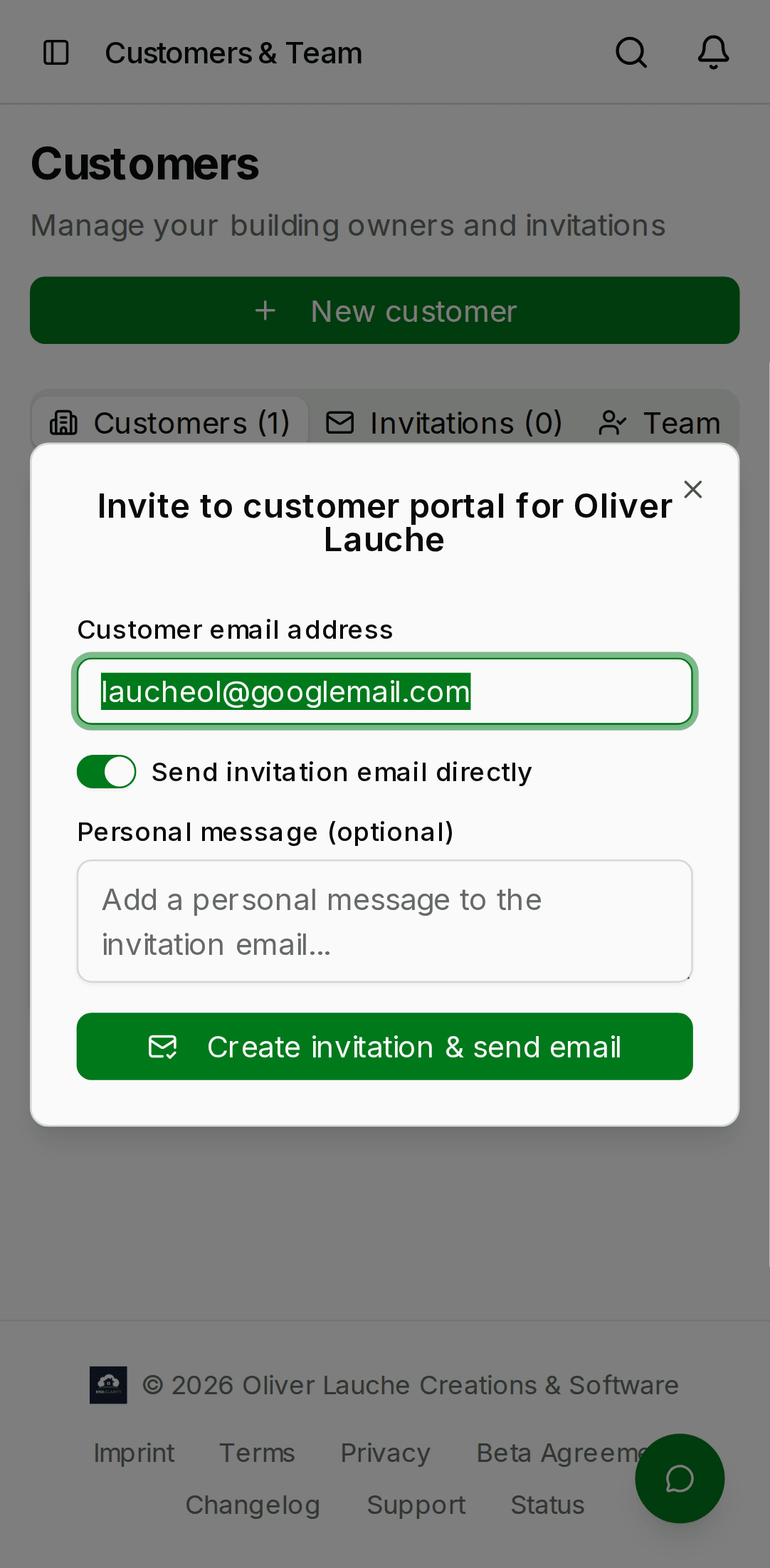
The Invite column in the customers list shows the current
state of the invitation: not invited, pending, accepted, or
expired. Click the state badge to resend, copy the invite link,
or revoke a pending invitation.
Invitation tokens are stored hashed in the database — we keep a SHA-256 of the token, not the plaintext. If you need to share the link with a customer through an out-of-band channel, copy it from the Pending badge within a few minutes of sending; we cannot recover the plaintext later.
When a customer has no portal access
A No portal access badge next to a customer's name (and next to the assigned customer on a project page) means no sign-in is linked to that customer record. That is the case before an invitation is accepted, and again after the customer deletes their KNX Clarity account.
When a customer deletes their account, their sign-in and their portal access to every linked project are removed immediately. The customer record and the project assignments stay: the contact card is your organisation's own business record, and the projects still belong to that building. Every member of your organisation gets a notification naming the affected projects. To give the customer access again, send a new portal invitation from the customers list; accepting it links the new sign-in to the same record.
Deleting a customer
From the customers list, click ⋮ → Delete on the customer row. You cannot delete a customer who still has linked projects — unlink the projects first (or delete them). This is a guard against accidentally orphaning project-to-customer references.
Deleting a customer does not delete any invited user account; their sign-in account still exists and they can still sign in, but they lose access to the org's projects immediately.